Multi-Server Management
DPanel supports managing multiple Docker and Podman server endpoints simultaneously, supporting adding through Sock files, API, SSH, and other forms.
Add Environment
[System] - [Multi-Server] - [Add Server].
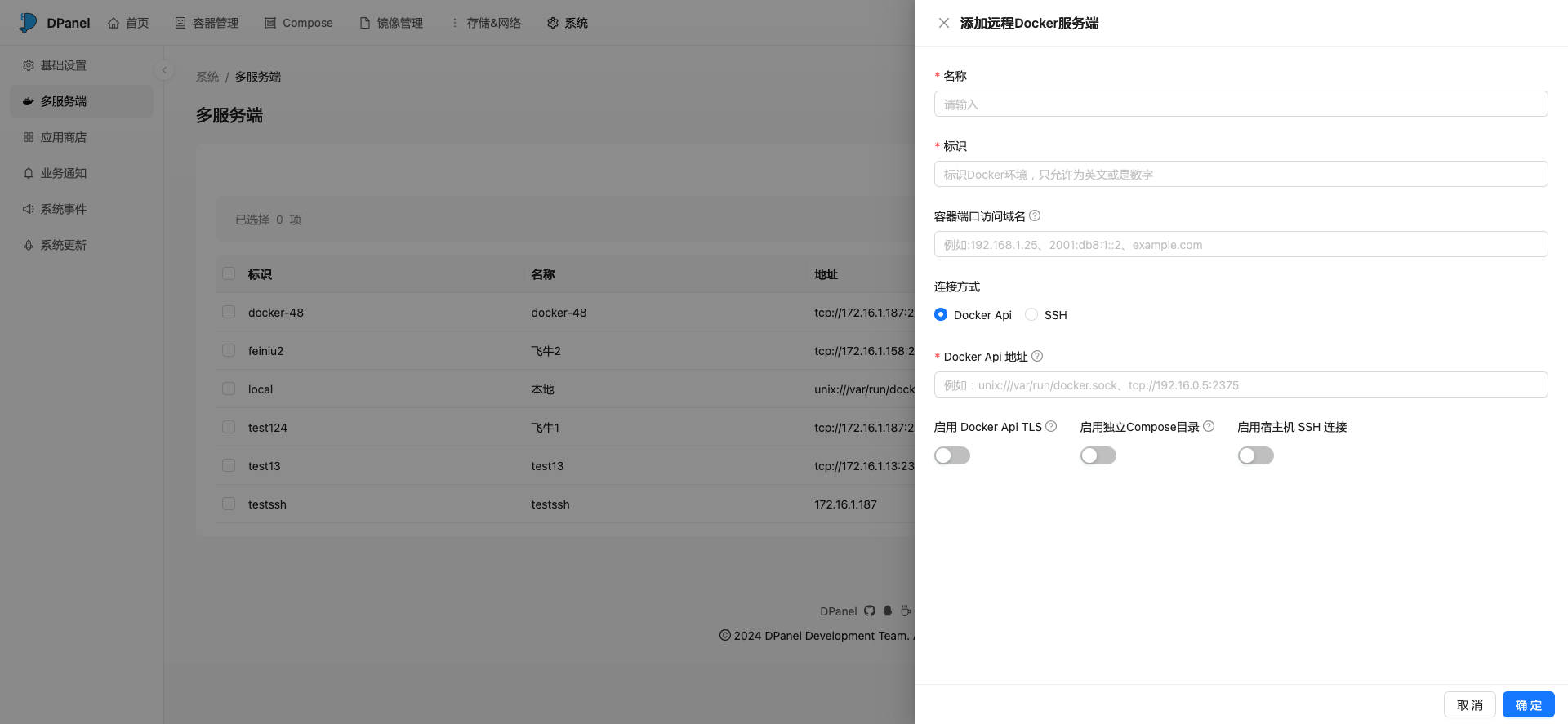
Add Through API
When using API to add a server endpoint, you need to enable Docker Tcp connection first. If adding a public address, you must also enable TLS connection. Fill in the Docker API address, for example:
tcp://192.168.0.5:2375Add Through SSH
Using host SSH permissions to manage remote Docker server endpoints can avoid cumbersome certificate configuration processes. When configuring permissions, please use the ROOT user or a regular user with Docker permissions.
Create New User
sudo useradd -m -G sudo,docker dpanelsudo passwd dpanelAdd Permissions for Existing User
sudo usermod -aG docker dpanel... other group information ...
docker:x:994:test1,dpanel
... other group information ...Verify Permissions
Switch to the target user and execute docker command. Normal output indicates successful addition.
docker psSwitch Environment
Switch between different Docker clients through the top menu.
Enable Independent Compose Directory
After enabling the independent Compose directory, the mounted Compose task files will only display the current server endpoint's private tasks. The storage directory is:
/dpanel/compose-server endpoint identifierConfigure Default Server
When creating the panel container, if the /var/run/docker.sock file is not specified or the default environment is a remote server endpoint, you can modify the default server (identified as local) to change connection parameters.
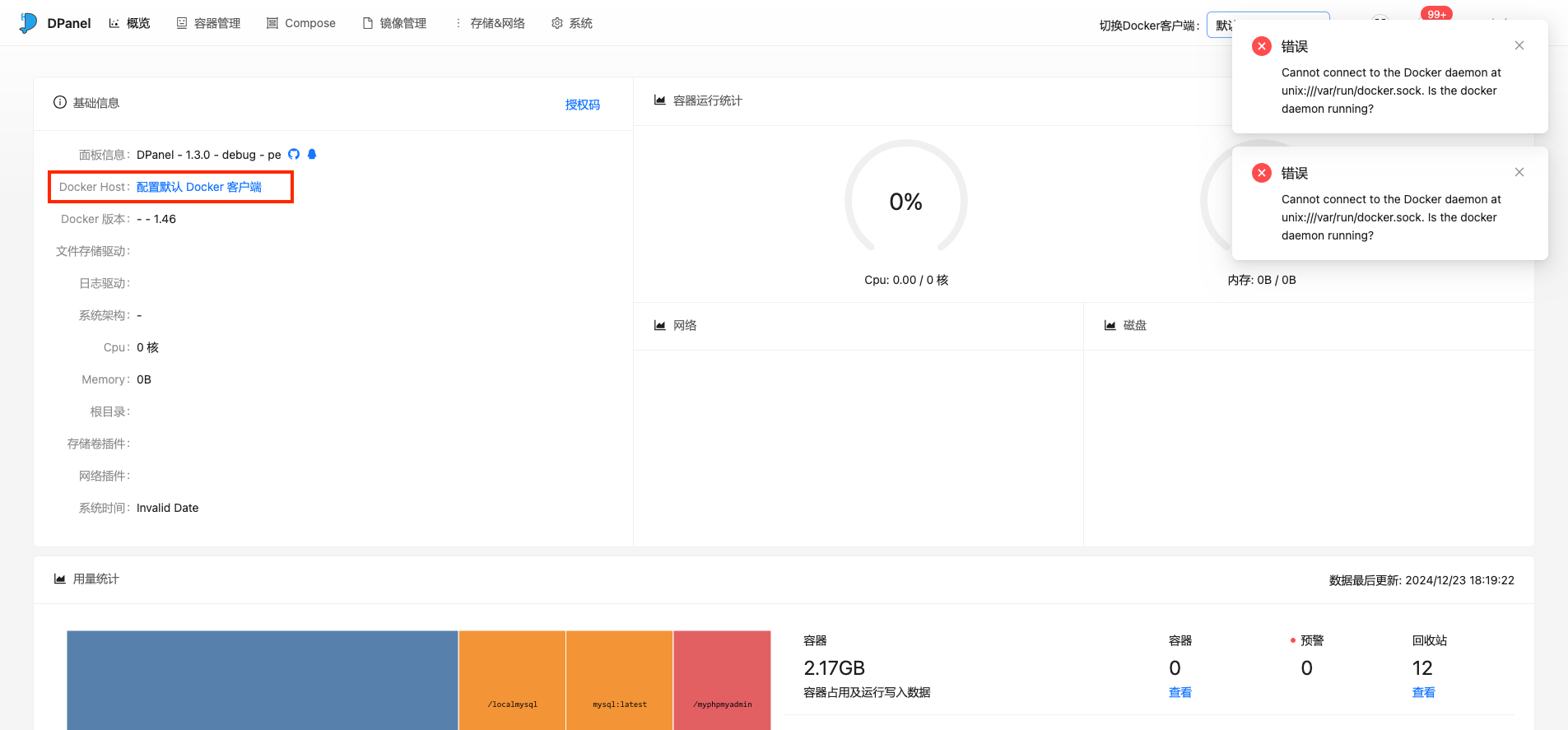
When the default server cannot be connected, you can modify the default server through [Overview] - [Configure Default Docker Client].
Configure Server Access Address
By default, the panel will automatically obtain the current browser address or server endpoint connection parameters to automatically splice the port access address. If you need to change the port access address, you can customize the access address by configuring [Container Port Access Domain].
Version Compatibility
When adding a remote Docker server endpoint, the interface will maximize coordination of interface versions. If the following error message appears, it means the interface version cannot match. Please upgrade the Docker version in time.
Docker server endpoint connection failed, please upgrade the target
Docker version Error response from daemon: client version 1.48 is too new. Maximum
supported API version is 1.43Check Docker Version
docker versionTIP
API version represents the API version supported by the server endpoint. This version cannot differ too much from the Docker SDK version on the DPanel overview page.
Client: Docker Engine - Community
 Version:           27.5.1
 API version:       1.47
 Go version:        go1.22.11
 Git commit:        9f9e405
 Built:             Wed Jan 22 13:41:17 2025
 OS/Arch:           linux/amd64
 Context:           default

Server: Docker Engine - Community
 Engine:
  Version:          27.5.1
  API version:      1.47 (minimum version 1.24)
  Go version:       go1.22.11
  Git commit:       4c9b3b0
  Built:            Wed Jan 22 13:41:17 2025
  OS/Arch:          linux/amd64
  Experimental:     false
 containerd:
  Version:          1.7.25
  GitCommit:        bcc810d6b9066471b0b6fa75f557a15a1cbf31bb
 runc:
  Version:          1.2.4
  GitCommit:        v1.2.4-0-g6c52b3f
 docker-init:
  Version:          0.19.0
  GitCommit:        de40ad0